
Your first project, step by step.
Follow the dashboard from project settings to a test key and loader. Open each step for dated examples of the setup controls.
Create your project
Dashboard → New project
Give your project a name and choose the default license expiry. Keep HWID Binding enabled if each key should belong to one device, then select Create Project.
You can start with a manual key. Checkpoint providers can be configured later.
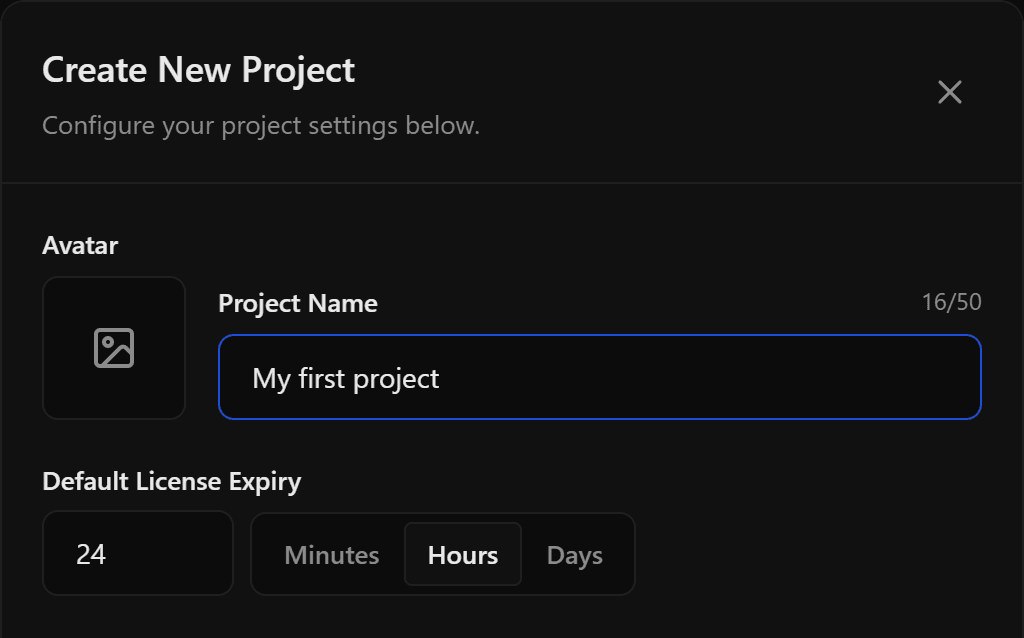
Scroll the screenshot sideways to see every control, or enlarge it below.
Project settings · cropped dashboard screenshotEnlarge screenshot Issue a test key
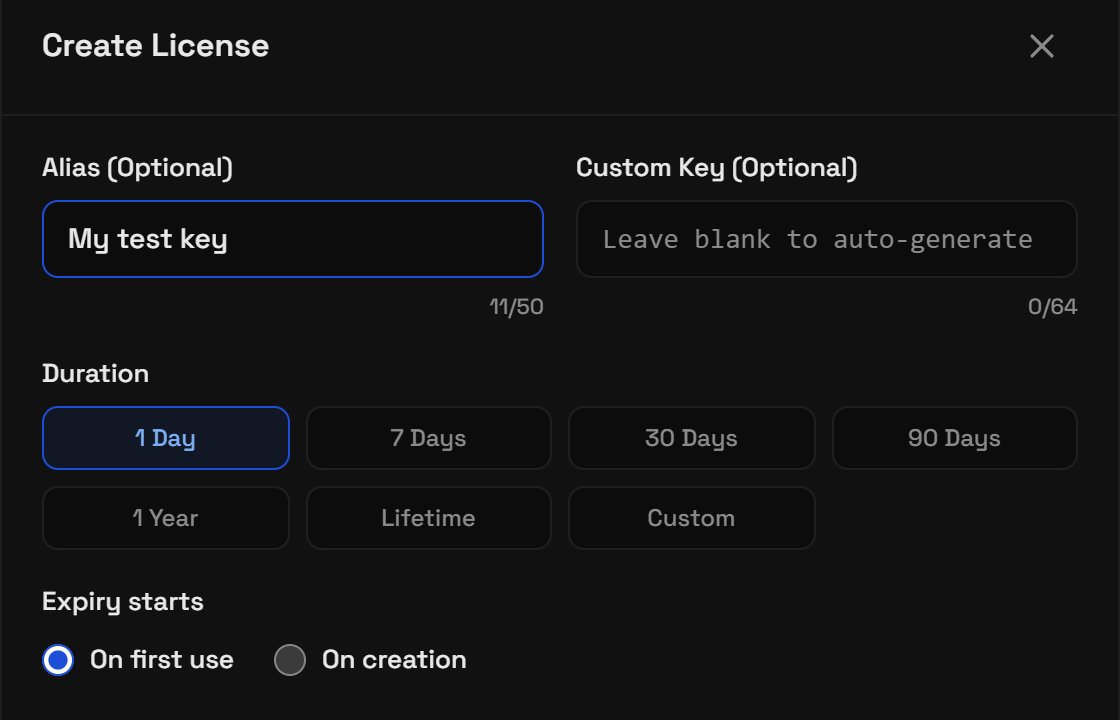
Project → Overview → License keys → Create
Open your project and select Create in License keys. Choose a duration and when its timer starts. Leave Custom Key blank to generate a key, then select Generate Key and copy the result privately.
For a device-bound test, leave FFA off. A first-use timer starts on the first successful validation, not when you copy the key.
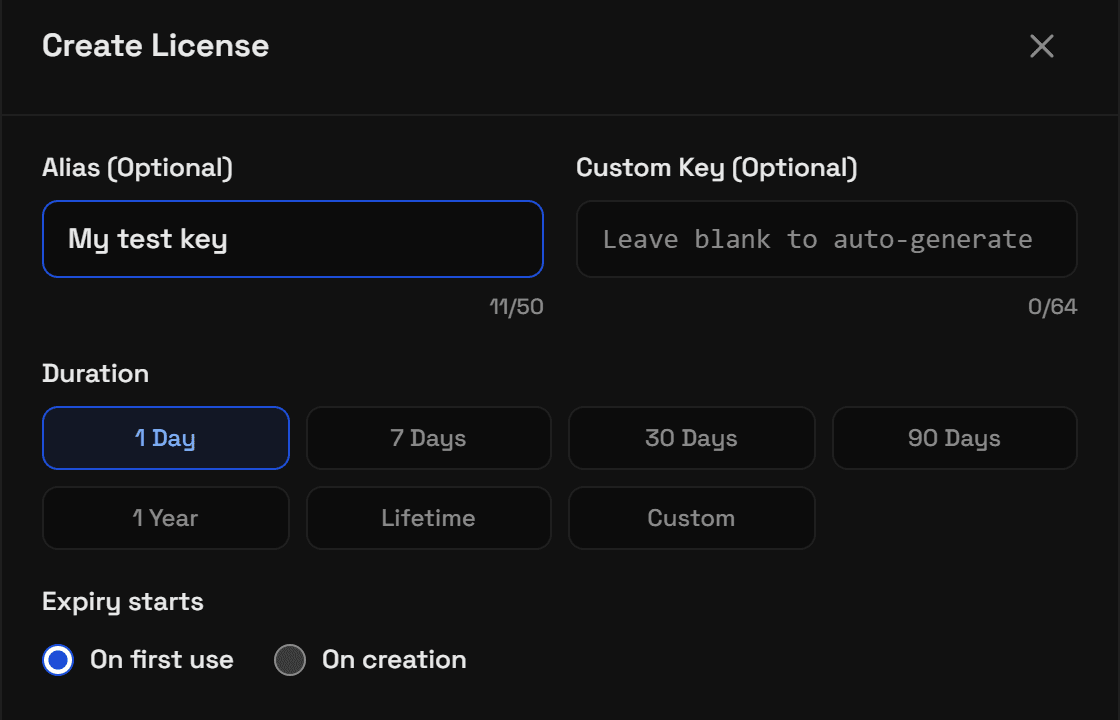
Scroll the screenshot sideways to see every control, or enlarge it below.
Manual key setup · cropped dashboard screenshotEnlarge screenshot Add your loader
Project → Loaders → Add loader
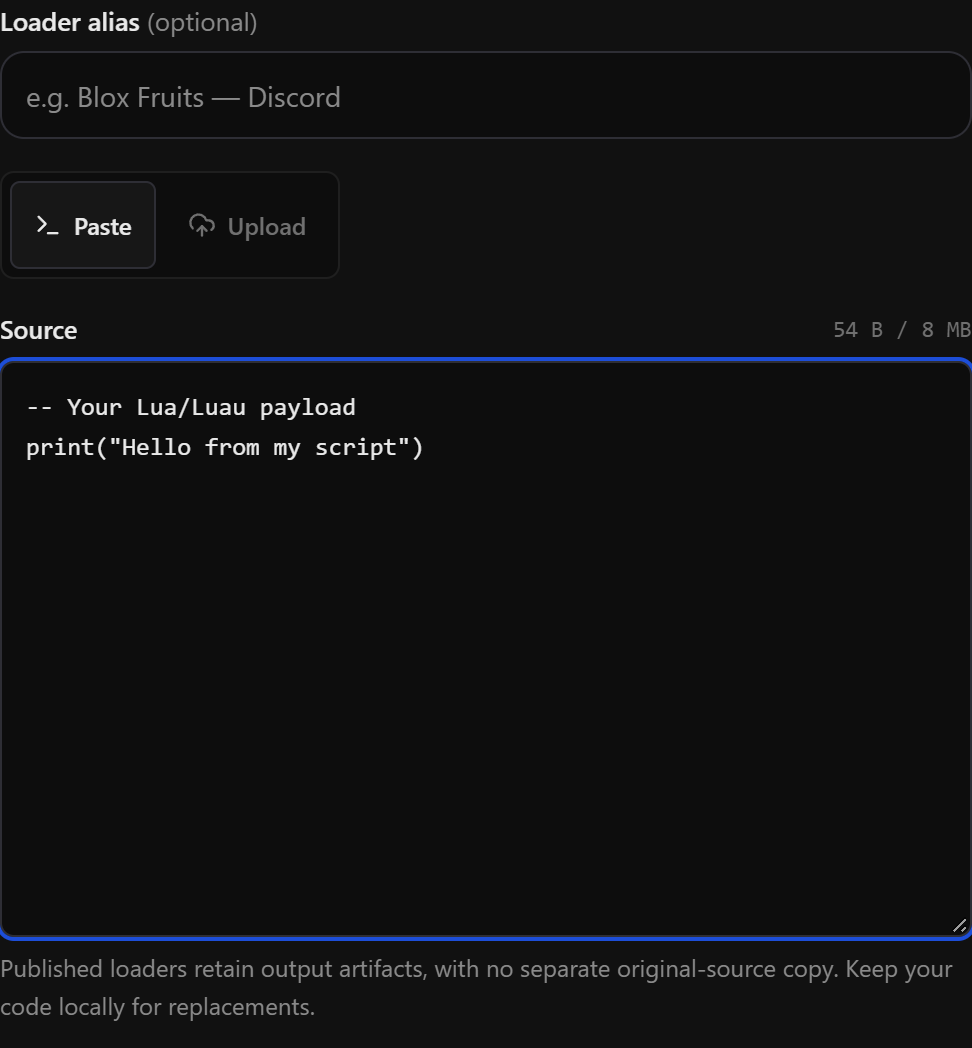
Paste your Lua/Luau source or upload a .lua or .txt file. Review the protection and access controls: Full VM protects new payloads and required generated stubs, while Off/passthrough supports unobfuscated code or code protected by your own obfuscator. Keep Key check enabled for licensed access. Choose the pinned loader release (Stable/Main 1.0.0 or Beta 1.0.1), then select Add loader to publish. The screenshot shows only the older source panel, not these release or protection controls.
After publishing, copy the dashboard’s loader snippet. Use your test key in the supported game client, then check that an invalid or banned key is denied. Keep your original source locally for future replacements.
Read the loader and testing guide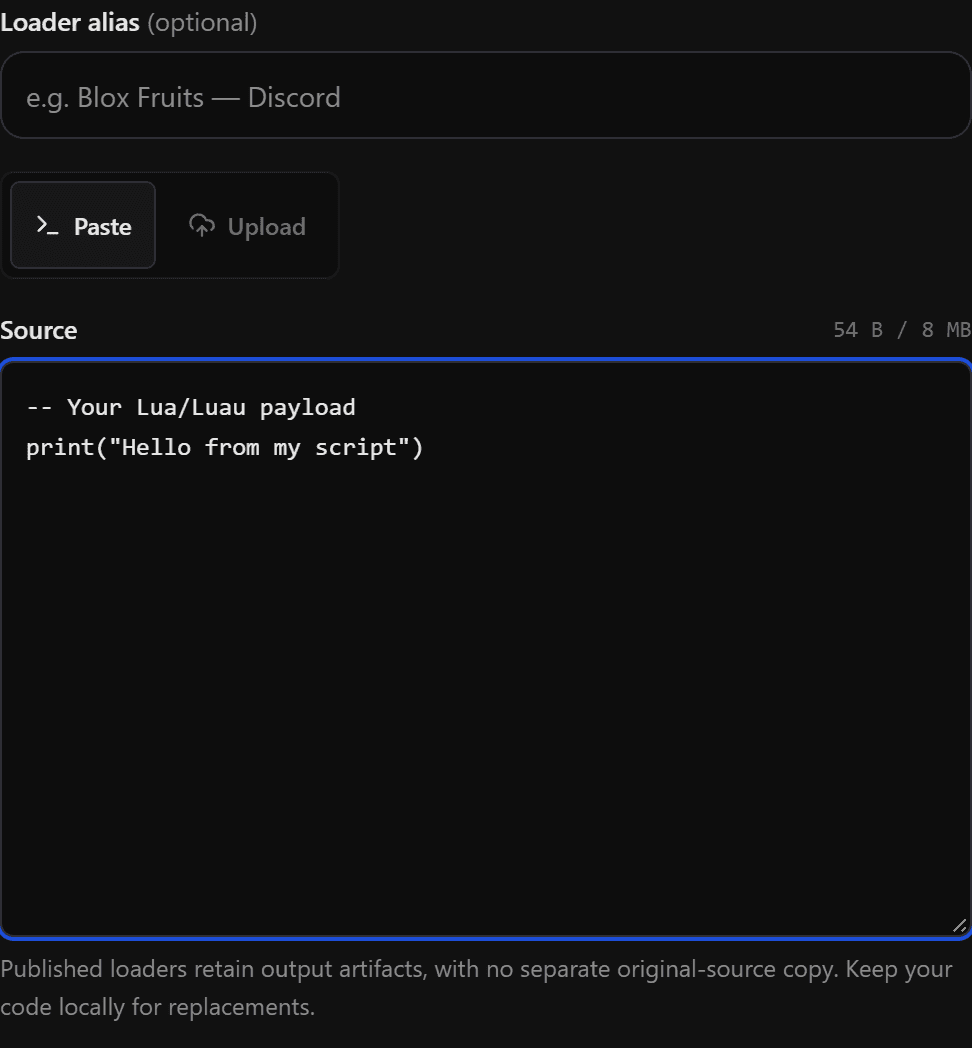
Scroll the screenshot sideways to see every control, or enlarge it below.
October 28 source panel · release and protection controls outside this cropEnlarge screenshot
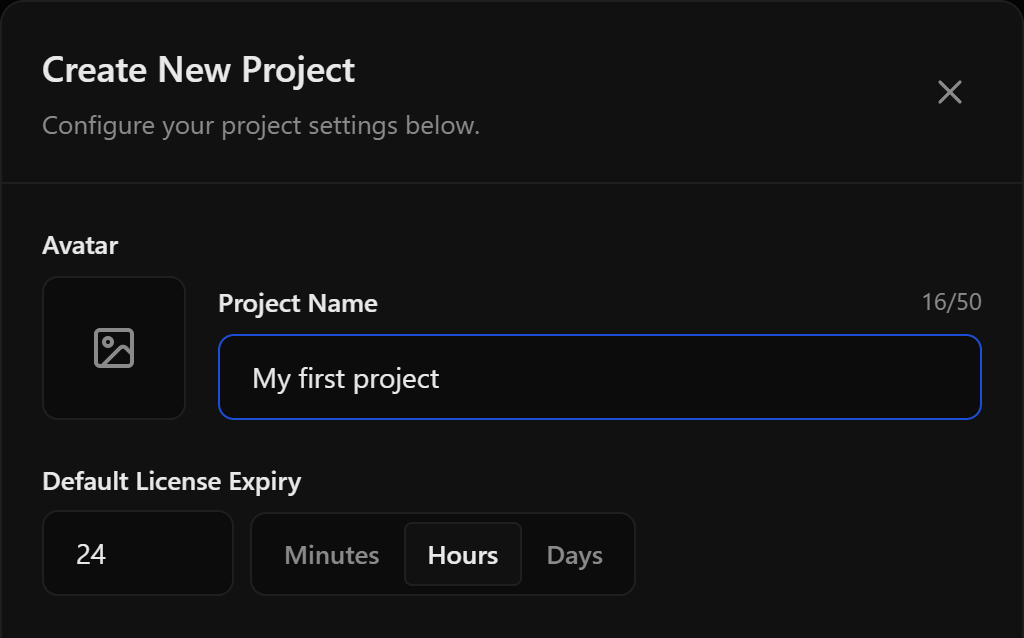
Dashboard examples captured from the owner-managed preview on October 28, 2026 and cropped for privacy. These are dated source/key/project form examples, not a complete view of current production controls. The loader crop excludes protection and release selection. Screenshots show setup controls before submission; test execution in your own game client.
Create your first project